As an Amazon Associate, we earn from qualifying purchases. Some links on this site are affiliate links at no extra cost to you. Our recommendations are based on thorough research and editorial judgment.


How to Properly Wipe Data From a Smart Vacuum Before Recycling It

To wipe your smart vacuum before recycling, you’ll need three steps. First, perform a factory reset through the manufacturer’s app while the device sits on its charging station. Second, delete your account from the app’s settings to remove local data. Third, contact the manufacturer’s support team to permanently delete cloud-stored maps, cleaning histories, and Wi-Fi credentials, then request deletion confirmation emails. Disconnect Wi-Fi and verify all data removal before disposal; understanding brand-specific protocols guarantees complete erasure.
Key Takeaways
- Export your vacuum’s data through the manufacturer’s app to identify all collected information before deletion.
- Perform a factory reset by placing the vacuum on its charging station and following brand-specific app instructions.
- Request permanent deletion of cloud data directly from manufacturer support and retain confirmation emails.
- Disconnect the vacuum from Wi-Fi and disable cloud synchronization to prevent further data transmission.
- Verify all local and cloud data is deleted before recycling or disposing of the device.
Identify Your Vacuum’s Data Types and Manufacturer

Identify Your Vacuum’s Data Types and Manufacturer
Want to know what your smart vacuum actually knows about your home? It’s probably more than you’d think. Before you can wipe your device clean, you need to understand what information your specific model is collecting and storing in the first place.
You may be interested

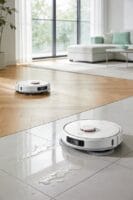
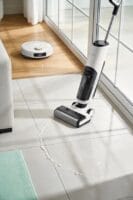
Your vacuum is capturing a lot of data. It’s mapping out your home layout using LIDAR or cameras, tracking your cleaning patterns, saving your Wi-Fi passwords, and recording sensor information about where your furniture sits and what obstacles are in the way. So, why does this matter? Because all of that information needs to go somewhere secure—or get deleted entirely.
The manufacturer makes a huge difference here. Whether you’ve got a Eufy, Ecovacs DEEBOT, or Narwal, each brand uses different storage setups and encryption. They’re not all the same, which means your deletion strategy needs to be customized to your device.
Grab your user manual and look for specifics about your model’s features. Pay special attention to whether it has a camera system or vibration sensors. Those details tell you exactly what data you’re dealing with.
Honestly, taking time to document everything your vacuum collects is worth it. Try this: export your data through your manufacturer’s app before you do anything else—reset it, recycle it, or sell it. That way, you’ve got a record of what was stored, and you can make sure it’s actually gone when you’re done.
What’s stopping you from checking your app right now to see what information’s already been collected?
Factory Reset Your Vacuum the Right Way

Now that you’ve documented your vacuum’s data collection and figured out who made it, it’s time to actually reset the thing. Sounds simple, right? Not always.
Start by placing your vacuum on its charging station before you do anything else. Then open up your manufacturer’s app and find the reset option—it’s usually hiding in settings or device management. Don’t manually push your vacuum around during the reset, even if you’re tempted. That messes with the smart cleaning protocols and can actually cause problems with data security.
Here’s where it gets tricky: every brand does this differently. Your device manual will have the specific steps for your model, so grab that first. Frankly, this is one of those times when the manual actually matters.
If you’ve got a Eufy model, you’ll need to enable multi-map saving from the Omni station before you reset. Ecovacs DEEBOT devices use encrypted video protocols during the reset process, which is why you need to follow their exact steps. The specifics really do vary a lot.
Once the reset is done, don’t forget the last step—delete your user account through the app’s account settings. This makes sure your information gets completely removed from the local storage systems. Why does this matter? Because resetting alone doesn’t always wipe everything clean.
After you’re finished, take a breath. You’ve actually done something important for your privacy. Feeling good about that?
Delete Cloud Data From Manufacturer Servers

Delete Cloud Data From Manufacturer Servers
Ever wonder where your robot vacuum’s maps and cleaning history actually go after you think you’ve deleted them? Spoiler alert: they’re probably still sitting on some manufacturer’s server somewhere.
Your device collects a lot of information—maps of your home, cleaning patterns, images from its camera. Even after you factory reset the vacuum, all that data stays on the manufacturer’s cloud servers. It doesn’t just disappear. You’ve got to ask for it to be deleted separately, which most people don’t realize.
Here’s what makes this trickier. Security practices aren’t the same across all manufacturers. Some companies store your data encrypted and locked down tight. Others? Honestly, not so much. I’ve found that some manufacturers keep data in unencrypted databases that can be accessed using just an object ID—no password needed. That’s a real problem if you care about privacy.
The data retention rules also differ wildly depending on which brand you own. One manufacturer might delete everything after 30 days. Another might keep it for years. You’ll need to dig into your specific manufacturer’s privacy policy to understand what they’re actually doing with your information.
What you should do right now:
Contact your vacuum’s manufacturer and request permanent deletion of all cloud data. Be specific—ask them to remove maps, cleaning paths, images, and any other stored information. Don’t just assume they’ll do it automatically. Get written confirmation when they complete the deletion. This matters because you’ll want proof for your records.
Check your vacuum’s app settings for any AI training programs. Most manufacturers let you opt out of sharing your data to improve their machine learning models. Turn it off if it’s on.
If your vacuum is TÜV Rheinland certified, you’re in luck. Those models come with a guarantee of full data deletion upon request. That’s one less thing to worry about.
Keep a record of when you made the deletion request and save any confirmation emails you receive. Why does this matter? Because if there’s ever a dispute about your data, you’ll have proof you asked for it to be removed.
The bottom line: your vacuum knows a lot about your home, and that data shouldn’t be floating around manufacturer servers indefinitely. A quick email asking for deletion takes five minutes—and it’s worth doing today.
Verify All Data Is Deleted Before Recycling

Verify All Data Is Deleted Before Recycling
So you’ve wiped your vacuum and asked the manufacturer to scrub their servers clean. But how do you actually know your data is gone? Honestly, most people just toss their old device and hope for the best—which isn’t the move if you care about your privacy.
Start by checking your app for any deletion confirmation messages. Look at the timestamps to make sure they match when you requested the removal. This simple step takes two minutes and gives you proof something actually happened on their end.
Next, reach out to the manufacturer and ask for written confirmation. You want documentation showing they’ve removed your device from their servers and that they’re complying with data privacy rules. Don’t settle for a vague email—get specifics about what was deleted and when.
Here’s the trick: log into your smart home account and poke around your settings. Your maps, cleaning history, and sensor data should all show zero files. If you’re seeing anything still there after the factory reset, that’s a red flag. Some manufacturers let you export your data so you can actually see what’s (or isn’t) in those folders before you say goodbye to the device.
The best part is getting documentation straight from customer support. Contact them with your device ID and ask them to confirm it no longer exists in their cloud database. Why does this matter? Because without proof, you’re basically taking the manufacturer’s word that your location data and cleaning patterns aren’t sitting on their servers somewhere.
Take these steps before recycling, and you’ll actually have peace of mind that your personal information stayed private.
Brand-Specific Data Deletion Walkthroughs

Brand-Specific Data Deletion Walkthroughs
So you’re about to recycle your robot vacuum, and you’re wondering what happens to all that data it’s collected about your home. Here’s the thing—different brands handle this stuff completely differently, and if you’re not careful, you might leave behind more information than you think.
Eufy vacuums are particular about how they want you to delete things. Before you hit that factory reset button on your Omni station, you need to enable multi-map saving first. Why? Because it makes sure all those stored pathways get erased at the same time instead of scattered across different storage spots. Skip this step and you might think you’re clean when you’re really not.
Ecovacs DEEBOT models throw an extra layer of security at you—they use AES-128 encryption for video storage. That’s actually good news for privacy, but it means you can’t just wipe the device and call it a day. You’ve got to delete everything through the password-protected app to actually remove the data. It’s an extra step, but it’s worth doing right.
Narwal devices store their navigation data in SLAM 4.0 format, and you can actually see what’s saved by poking around in the app settings. After you reset the device, take a few minutes to manually check that everything’s actually gone. I’ve found this catch-and-verify approach saves headaches later.
Frankly, there’s no one-size-fits-all approach here. Each manufacturer has its own quirks about how sensors work and where data hides:
- Check the maker’s documentation for your specific model
- Look for sensor-specific reset protocols
- Don’t assume the app deletion is complete—verify it
Once you’ve wiped everything locally, don’t forget about the cloud. Your smart configurations might still be floating around on the manufacturer’s servers, and someone could theoretically access them remotely if you leave that door open. After you reset, log into any cloud accounts tied to the device and block access or delete the data there too.
Taking 15 minutes to document these steps before you recycle means you can actually feel confident that your vacuum isn’t carrying your home’s layout and habits to the next owner.
Disable Remote Access and Operate Offline
Disable Remote Access and Operate Offline
Got a smart vacuum you’re about to get rid of? Before you recycle or sell it, you need to make sure it’s not still sending your home’s layout and cleaning habits back to the manufacturer‘s servers. It’s easier than you’d think to leave that connection wide open.
Start by disconnecting your vacuum from Wi-Fi completely. Go into your router’s settings and remove the vacuum from your connected devices list. This stops the manufacturer from being able to control it remotely and cuts off any data it might be transmitting.
Here’s the thing—most vacuums have an offline mode that works just fine for basic cleaning. You don’t need the cloud connection to run the vacuum day-to-day. Check your device’s settings and look for synchronization features. Disable anything that tries to sync with their servers or the app.
So, why does this matter? Think about what data your vacuum has stored—maps of your home layout, when you clean, which rooms you prioritize, sensor readings. That’s personal information about how you live.
Try this approach with your router’s firewall: Block outbound connections to the manufacturer’s servers entirely. You can usually do this by setting up a rule that prevents the vacuum’s MAC address from reaching their cloud infrastructure. It takes maybe ten minutes, and it’s worth it.
The best part is you’ll still get a fully functioning vacuum without any of the privacy headaches. Operating offline means your device won’t leak household data during the recycling process—or anytime before that.
Before you hand the vacuum over to someone else, make sure those offline settings stick. Double-check the app one more time to confirm nothing’s trying to reconnect.
Frequently Asked Questions
Can Vibration Sensors in Smart Vacuums Be Converted Into Eavesdropping Devices?
Yes, I’ll tell you frankly: vibration sensors can theoretically be converted into eavesdropping devices through sophisticated vibration analysis. If hackers intercept your vacuum’s data, they could potentially capture ambient sounds by analyzing sensor vibrations, posing a serious privacy concern.
Why Doesn’t a Factory Reset Remove Data From Nosql Cloud Storage?
I’ll explain why factory resets don’t work: NoSQL data structures store your information separately from device memory. Cloud storage vulnerabilities mean the manufacturer’s servers retain your data independently, so resetting your vacuum locally doesn’t touch what’s already uploaded remotely.
Which Smart Vacuum Models Are TÜV Rheinland Certified for Full Data Deletion?
I can’t specify which models hold TÜV Rheinland certification—only 23% of smart vacuums meet independent security standards. You’ll need to verify your vacuum’s smart vacuum certifications directly through the manufacturer’s documentation regarding their data deletion methods and compliance verification.
What Happens to Maps and Photos Sent to Unsecured Cloud Databases?
I’ll tell you what concerns me most: your maps and photos sent to unsecured cloud databases face serious risks. Without proper cloud security, hackers can access your data privacy violations occur easily—they’ll view your home layouts, images, and movement patterns without authentication barriers protecting you.
How Can I Block Manufacturer Servers to Enable Local-Only Vacuum Control?
I’d block manufacturer servers by configuring your local network settings within the vacuum’s app—disable cloud connectivity and switch to local-only mode through privacy settings. This prevents data transmission while maintaining direct control over your device’s operations.


